Connect Aryeo
Aryeo is where your schedule, customers, and orders live — connecting it is what turns Kelly from a chatbot into your assistant. Takes about two minutes.
1
Open Aryeo's Developer Settings
Log in to Aryeo, open your group's settings, and find Developer Settings. (You need to be an admin on the group.)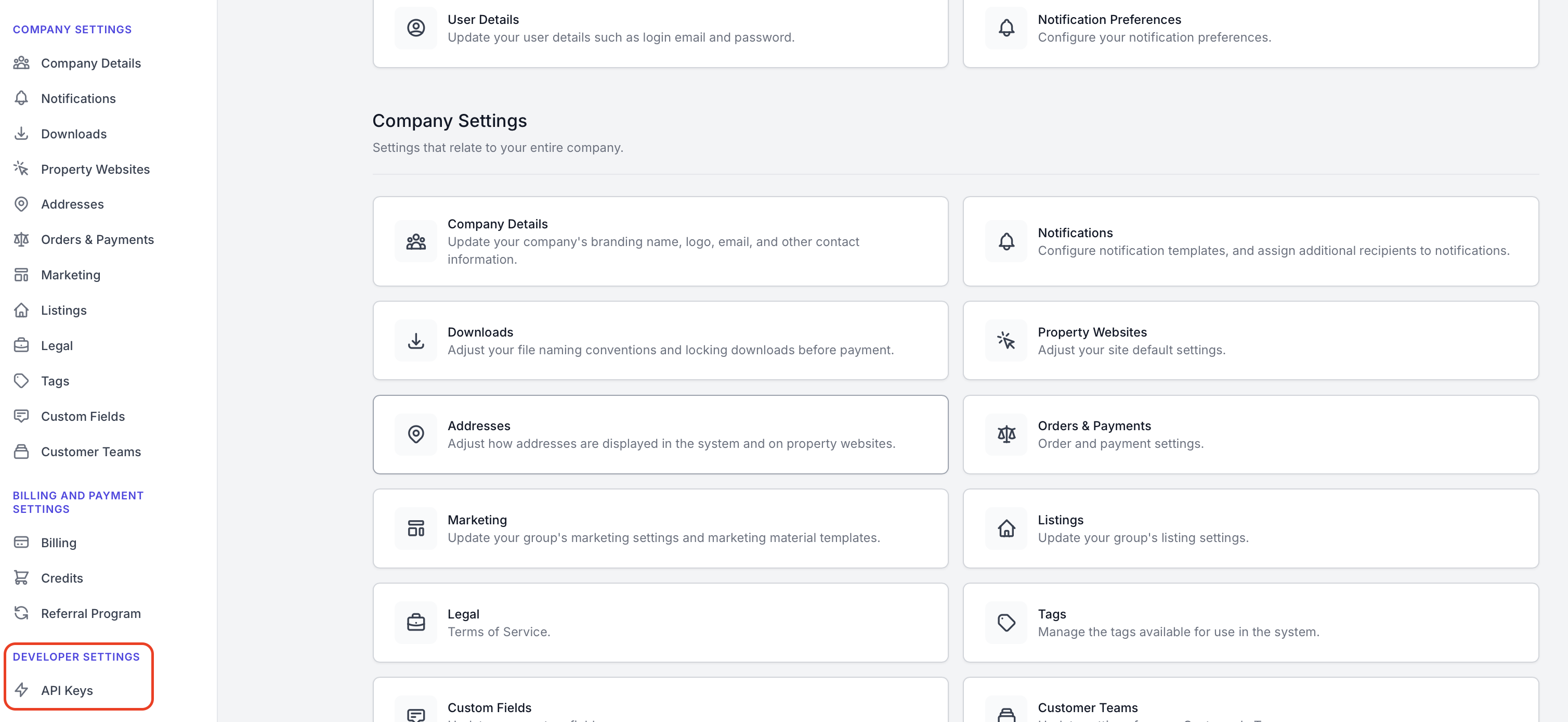
2
Create an API key
Create a new API key and copy it. Treat it like a password — it gives full access to your Aryeo account, and Kelly stores it encrypted.
3
Paste it into Kelly
In Kelly, open Settings → Integrations (Settings is at the bottom of the chat sidebar), paste the key into the Aryeo card, and click Connect. Kelly validates the key with Aryeo before saving it.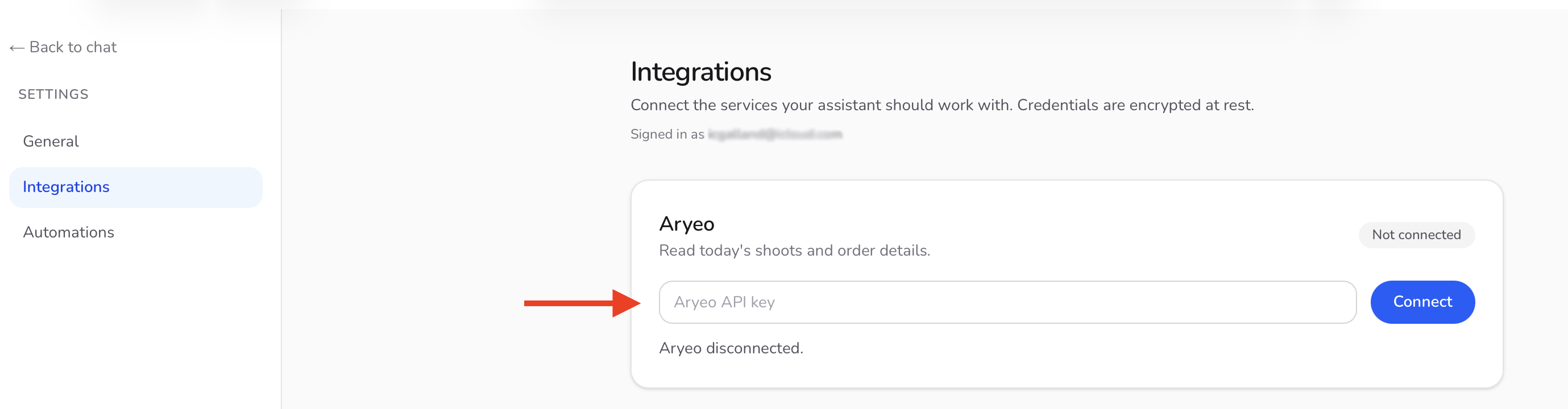
4
Test it
Go back to chat and ask: “What's on my schedule today?” If Kelly answers with your real appointments (or a confident “nothing today”), you're connected.
Something not working? Disconnect and reconnect with a freshly created key, and make sure the key was created on the group whose calendar you want Kelly to see.